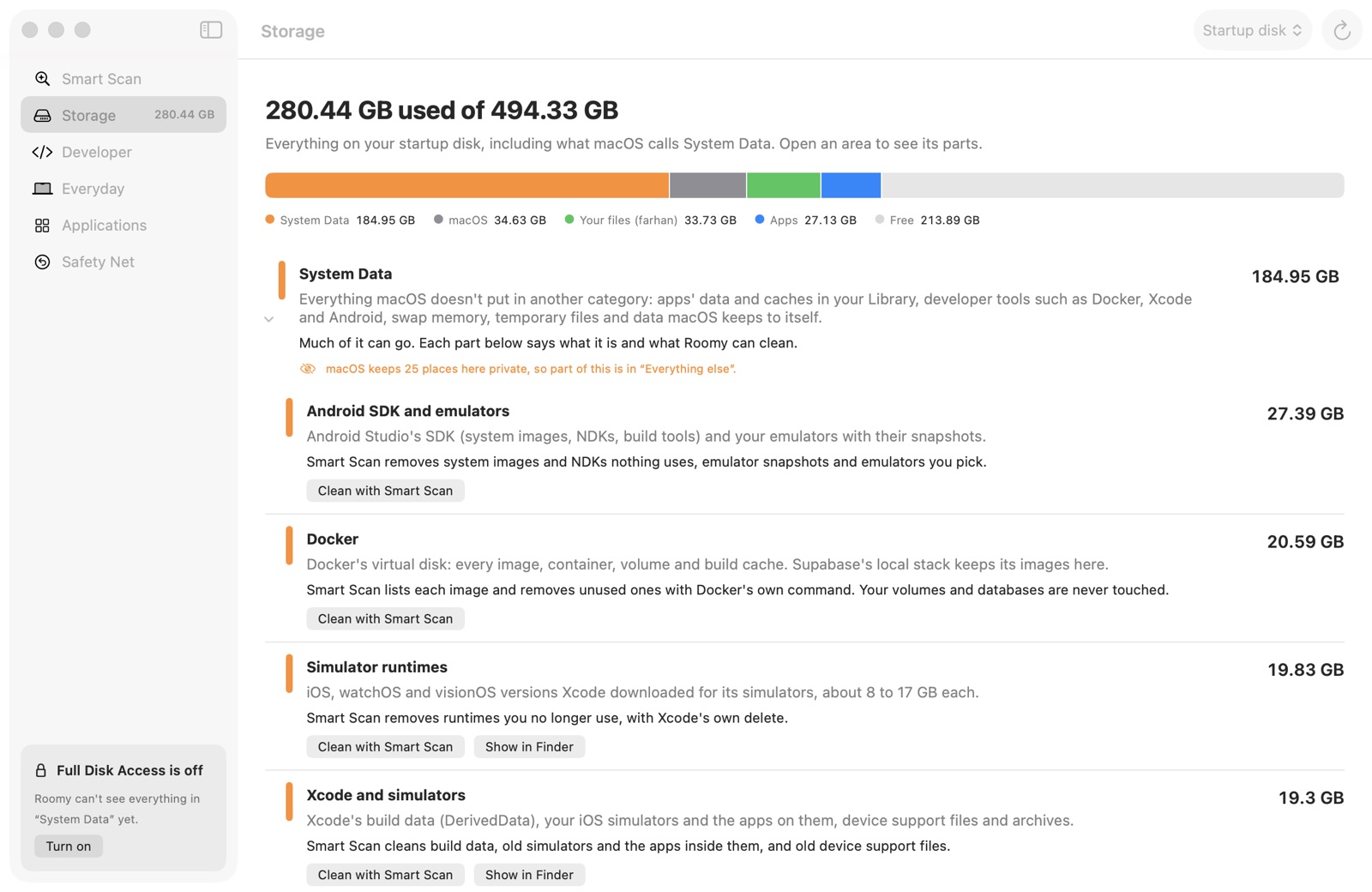
System Data, explained
Every gigabyte on your disk, grouped like System Settings and split into parts you recognise: Docker, Xcode, Android, apps' data, swap, temporary files. Each says what it is and what can go.
 Roomy
Beta
Roomy
Beta
Roomy explains everything on your disk in plain English, including the mysterious "System Data", and cleans what's safe: caches, old installers, Xcode, Docker, Android and node_modules. Anything you might want back waits in the Safety Net for 7 days.
A private beta. Thanks for trying it!
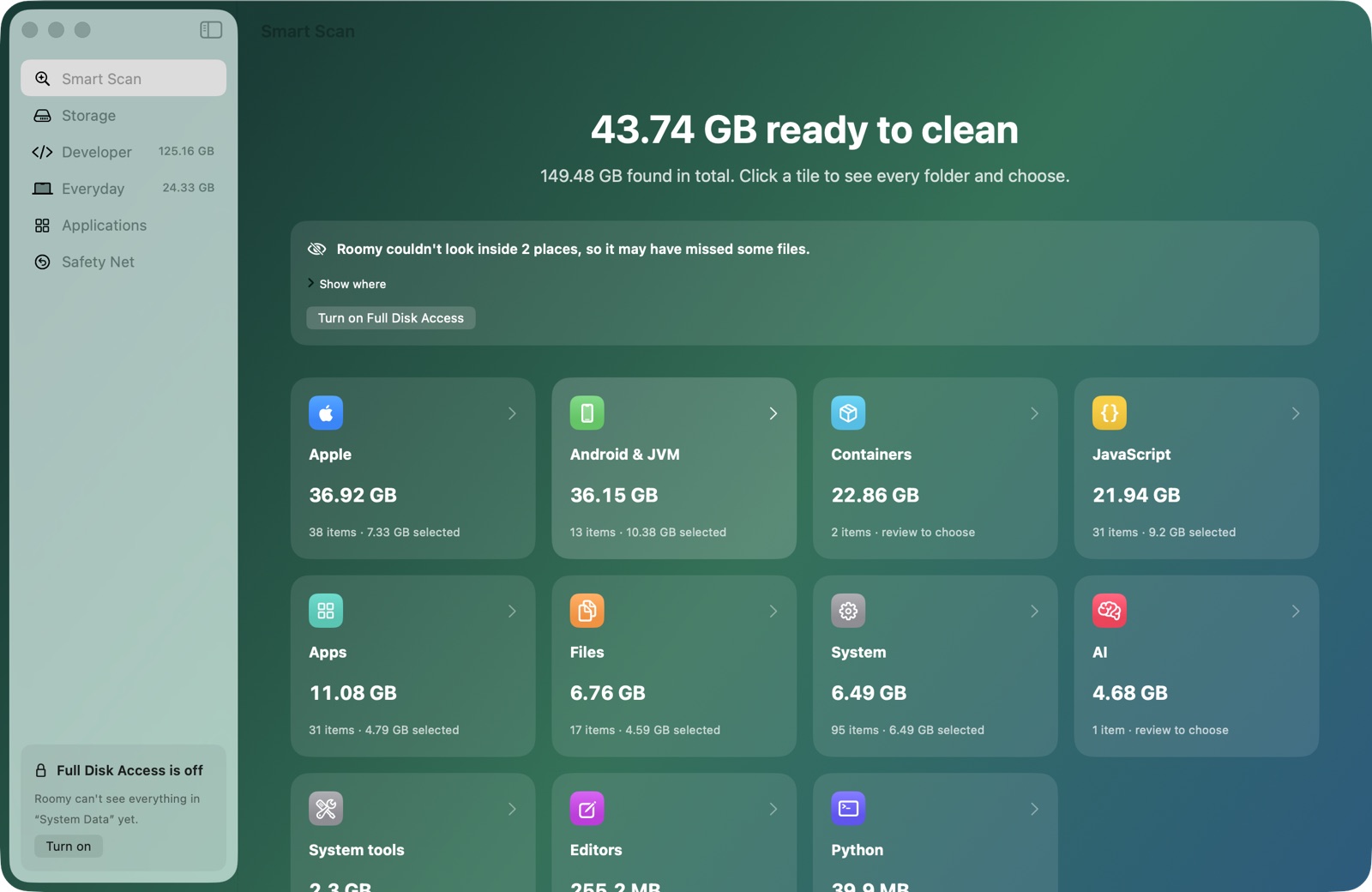
Every gigabyte on your disk, grouped like System Settings and split into parts you recognise: Docker, Xcode, Android, apps' data, swap, temporary files. Each says what it is and what can go.
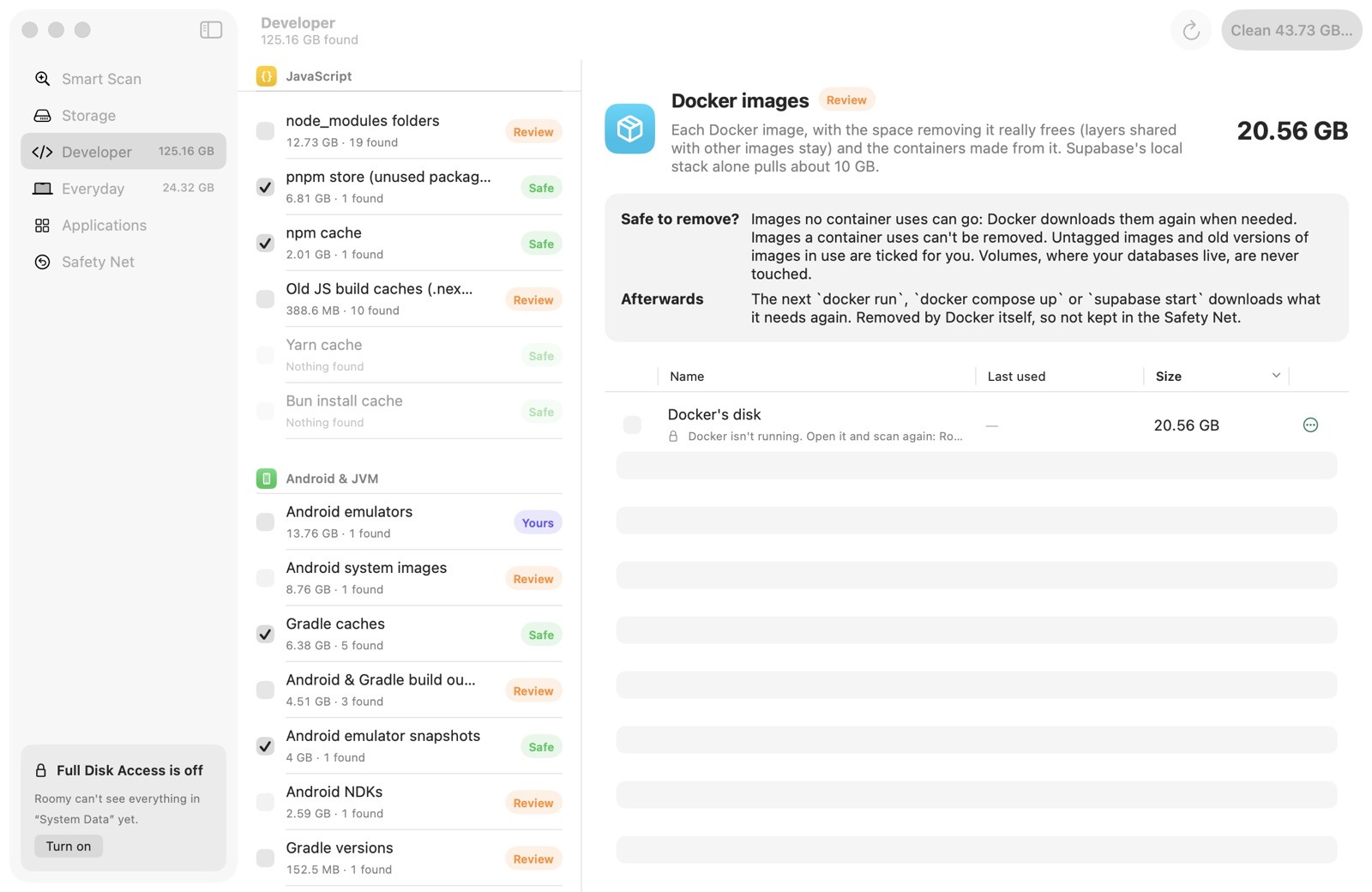
node_modules, Xcode build data, simulators and runtimes, Android NDKs and system images, Gradle, Docker images, agent worktrees. Anything in use is shown with what uses it, and locked.
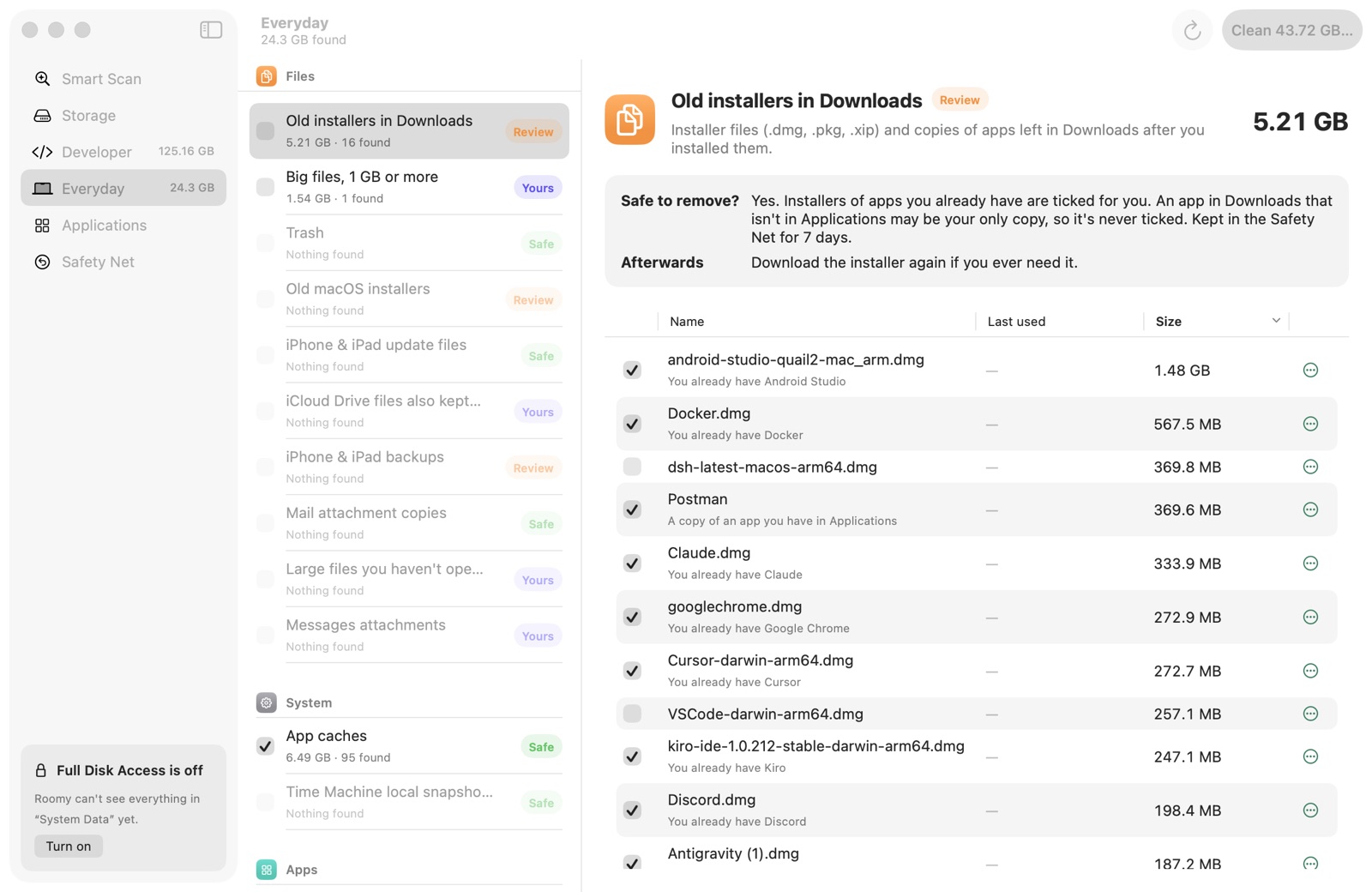
App and browser caches, old installers, iPhone backups and updates, big files, the Trash, leftovers of deleted apps, iCloud downloads, and an uninstaller that takes an app's data with it.
What rebuilds itself is removed. Anything you might want back goes to the Safety Net first: restore it with one click, byte for byte.
Documents, photos, Mail, Messages, Notes, passwords and keys, Git history, Docker volumes and open apps are off-limits.
An NDK a project builds with, an image a container runs, an emulator's system image: shown with what uses it, and locked.
Roomy only reads until you click Clean, and sends nothing anywhere. No account, no tracking.
Free during the beta. One file for every Mac.
macOS 14 Sonoma or later · Apple Silicon and Intel
Download RoomyA small disk image. Nothing is installed besides the app.
The beta isn't signed by Apple yet, so your Mac asks once whether you trust it. Here's how to say yes.
.dmg and drag Roomy into Applications.On macOS 14 you can instead right-click Roomy › Open › Open. Each new beta is a new app to macOS, so Full Disk Access is asked for again.
Click Scan. Roomy only looks: nothing changes until you say so.
Click a tile to see every folder with what it is, whether it's safe, and what happens after. Storage in the sidebar shows your whole disk.
Safe items are ticked for you. Tick what else you want, click Clean, check the review, and confirm.
Open the Safety Net and click Restore, any time within 7 days.
How much did it free? What confused you? Did it flag anything it shouldn't have? Would you pay for it? Every answer helps.
Send feedbackIn the app: Send Feedback at the bottom of the sidebar, or Help › Send Feedback…